
Set up a voice agent for your phone number in an afternoon
You don’t write the prompt. Your AI does.
Here’s how to go from zero to a voice agent that answers your calls, sounds exactly the way you want it to, and tells you who called and why — without touching a config file.
What you’re building
Anyone who calls your number gets your AI. You get a structured notification back: who called, their number, what they wanted.
No voicemail. No missed context. No calling back blind.
My setup: I forward my phone to an Exotel number when I’m busy or unavailable. The bot answers, has the conversation, and pings me on Google Chat. I know the caller’s name, number, and reason within 90 seconds.
That’s the end state. Here’s how to get there.
If you don’t have an Exotel account yet: Sign up here. Get a virtual number while you’re at it — that’s the number the bot will answer on.
Step 1: Connect ExotelMCP to your AI
ExotelMCP is what gives your AI hands. Once it’s connected, your AI can create voice bots, configure them, list available voices, push prompt updates, place calls, fetch transcripts — all through plain language, no API code.
Get your credentials from the Exotel dashboard:
Go to my.exotel.com → Settings → API Settings. You need:
- API Key
- API Token
- Account SID
Install ExotelMCP:
Paste this into Claude (or any MCP-compatible AI client):
Set up Exotel MCP for me.

My credentials:
- API Key: [YOUR_API_KEY]
- API Token: [YOUR_API_TOKEN]
- Account SID: [YOUR_ACCOUNT_SID]

Install mcp-remote if needed, update the MCP config, and tell me when to restart.
Restart your AI client. The Exotel tools are now available.
Verify it’s working:
Ask your AI: “List my VoiceBots.”
If it returns a list (or tells you none exist yet), you’re connected.
Full setup guide: docs.exotel.com/mcp-server · Source: github.com/exotel/ExotelMCP
Step 2: Tell your AI what you want — it builds the bot
This is where most setup guides send you to a config panel and tell you to fill in fields. Not here.
You describe what you want in plain English. Your AI handles the rest: it queries the available voices, picks the right one, sets the speaking pace, writes the agent prompt, creates the bot, and pushes it live.
Here’s an example of what to say:
I want to set up a voice agent for my phone number. When someone calls:
- It should greet them warmly and find out who they are and why they're calling
- It should feel calm and professional. Use a male voice, moderate pace, Indian English accent
- It should confirm the message back before ending the call
- It should be honest if asked whether it's an AI

Create the bot and configure it.
That’s it. Your AI will:
- Call
list_voicesto see what’s available — male, female, different accents, energy levels - Pick a voice that matches what you described
- Write a prompt that captures the caller’s name, reason, and message
- Create the bot via
create_botand push it as the stable version
You can be as specific or as vague as you want. “Calm male voice” is enough. So is “sounds like a confident woman who’s been answering calls at a law firm for 20 years.” The AI figures it out.
One thing worth knowing: the bot has a static greeting that plays before the AI even loads — the first words the caller hears. Tell your AI to make it identity-first:
The greeting should immediately say who this is. Something like:
"Hi, you've reached Shivku's AI assistant. He's not available right now —
can I take a message?"
First impressions matter. If the caller doesn’t know who they reached in the first three seconds, they hang up.
Step 3: Wire a notification
The bot is live. But right now, when someone calls and leaves a message, nothing happens. You need to know about it.
Tell your AI to add a notification tool:
When a caller leaves a message, send me a Google Chat notification with:
- Their name
- Their phone number
- A one-line summary of why they called

Use the notify_gchat tool. My GChat space ID is: [YOUR_SPACE_ID]
Your AI will wire the tool into the bot’s configuration and push a new version.
Getting the caller’s phone number into the notification: The platform makes the caller’s number available as {contact_uri} — a variable you can use directly in your bot’s prompt. Tell your AI:
Include the caller's phone number in the notification.
Use {contact_uri} — the platform fills this in automatically.
Your AI will add {contact_uri} to the notification text, so you get “Missed call from +91XXXXXXXXXX — Rohan (colleague): …” rather than just a name.
Finding your GChat space ID: Go to the space in Google Chat, click the space name → View space details → the ID is at the end of the URL.
Using a different channel? The same approach works for Slack (use an incoming webhook), WhatsApp (via Exotel’s messaging API), or email. Tell your AI which channel you want — it will figure out the right tool to call.
The notification format matters. Push for something structured:
Missed call from +91XXXXXXXXXX — Rohan (colleague): Wants to discuss the quarterly review. Asked you to call back before 5pm.
Name, number, context. That’s a callback you can act on. “Someone called” is not.
Here’s what it looks like in practice — a few days of my “Missed calls” space on Google Chat:
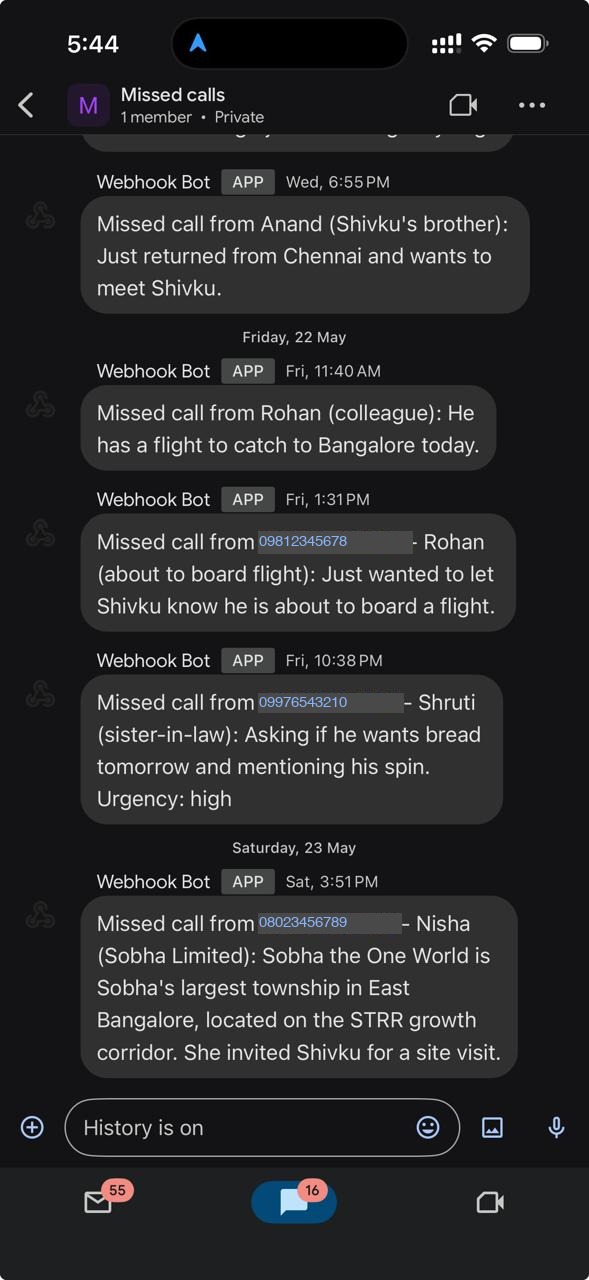
Each message is the bot summarising a real conversation. Who called, why they called, what they need. I open Google Chat and I know exactly what to do next, without having spoken to anyone.
Step 4: Set up call forwarding on your phone
Your Exotel bot is ready. Now you need calls to actually reach it.
Set up conditional call forwarding — so when you’re busy, on another call, or unreachable, calls go to your Exotel number instead of voicemail.
On Airtel (dial these codes from your phone):
| Condition | Code (dial from your phone) |
|---|---|
| When busy | **67*[YOUR_EXOTEL_NUMBER]# |
| When no answer | **61*[YOUR_EXOTEL_NUMBER]# |
| When unreachable / no signal | **62*[YOUR_EXOTEL_NUMBER]# |
Example: **67*08046800979# — dial it exactly like a phone number, including the ** at the start and # at the end.
On Jio:
Same MMI codes work on Jio. Dial the same format.
On Vi:
Same codes. Vi may prompt a confirmation SMS — just follow it.
On iPhone:
Settings → Phone → Call Forwarding is for unconditional forwarding (all calls). For conditional forwarding (busy/no-answer only), use the MMI codes above — they work directly from the iPhone dialer.
⚠️ iPhone Live Voicemail: If you have Live Voicemail enabled (Settings → Phone → Live Voicemail), turn it off first. When Live Voicemail is on, unanswered calls go to Apple’s voicemail system — not your carrier’s — which means conditional call forwarding never triggers and your bot never gets the call. Disable Live Voicemail, set your call forwarding codes, then you’re good.
On Android:
Phone app → Settings → Supplementary Services → Call Forwarding → set each condition separately.
To verify it’s working: Call your number from another phone while your phone is busy on a call. The bot should answer.
Step 5: Call your own number
Before you tell anyone else about it, call yourself.
Put your phone on DND or ask someone to call you while you’re on another call. Listen to what the caller hears. Then check the transcript.
Ask your AI: “Show me the transcript of the last call.”
Read it. Does the greeting land? Did it capture the message correctly? Did you get the GChat notification with the right info?
If something’s off — the greeting was too stiff, the bot asked for too much, the notification was missing the phone number — tell your AI:
The greeting was too formal. Make it warmer.
The notification didn't include the caller's phone number. Fix that.
Your AI updates the prompt and pushes a new version. You’re done in two minutes.
This is the only test that matters. Everything looks good until you actually hear it.
Step 6: Make it smarter over time
A message-taking bot is the starting point, not the ceiling.
The same workflow — describe what you want, AI configures it, push, test — scales to much more capable agents. You never need to open a config panel or write a prompt yourself.
Some directions people take this:
More conversational: “Don’t just take a message. Actually have a dialogue. If someone calls about a support issue, ask clarifying questions. Try to resolve it before routing to me.”
Context-aware: “Add a tool: if the caller mentions they’re a customer, look them up in Salesforce and greet them by name. Reference their open issues.”
Schedule-aware: “Tell callers whether I’m in a meeting. If I’m blocked for the next two hours, say so and ask if it’s urgent.”
FAQ handling: “Handle billing questions end-to-end. Only escalate to me if the caller is frustrated or the amount is over ₹10,000.”
Every time you add a capability, your AI updates the prompt, wires any new tools, and pushes a new version. You describe the outcome. The AI handles the implementation.
The agent gets smarter every time you have that conversation. No re-learning the platform. No reading docs. Just: tell your AI what you want next.
That’s it
You now have a voice agent on your number. It answers when you can’t. It captures who called and why. It notifies you in real time. And it gets smarter every time you talk to your AI about it.
The phone still rings. But it’s working for you even when you’re not picking up.
Built on Exotel VoiceBot + ExotelMCP. Questions? Find us at exotel.com/build.