
Until now, CQA scored every call on what was said in it. It could tell you whether an agent greeted the customer, verified their identity and followed the script. It could not tell you whether what the agent said was true.
Second-Order Insights closes that gap. CQA now checks what an agent says against your own system of record, such as your CRM, order management or billing platform, before it scores a KPI.
The gap: transcripts can’t check facts
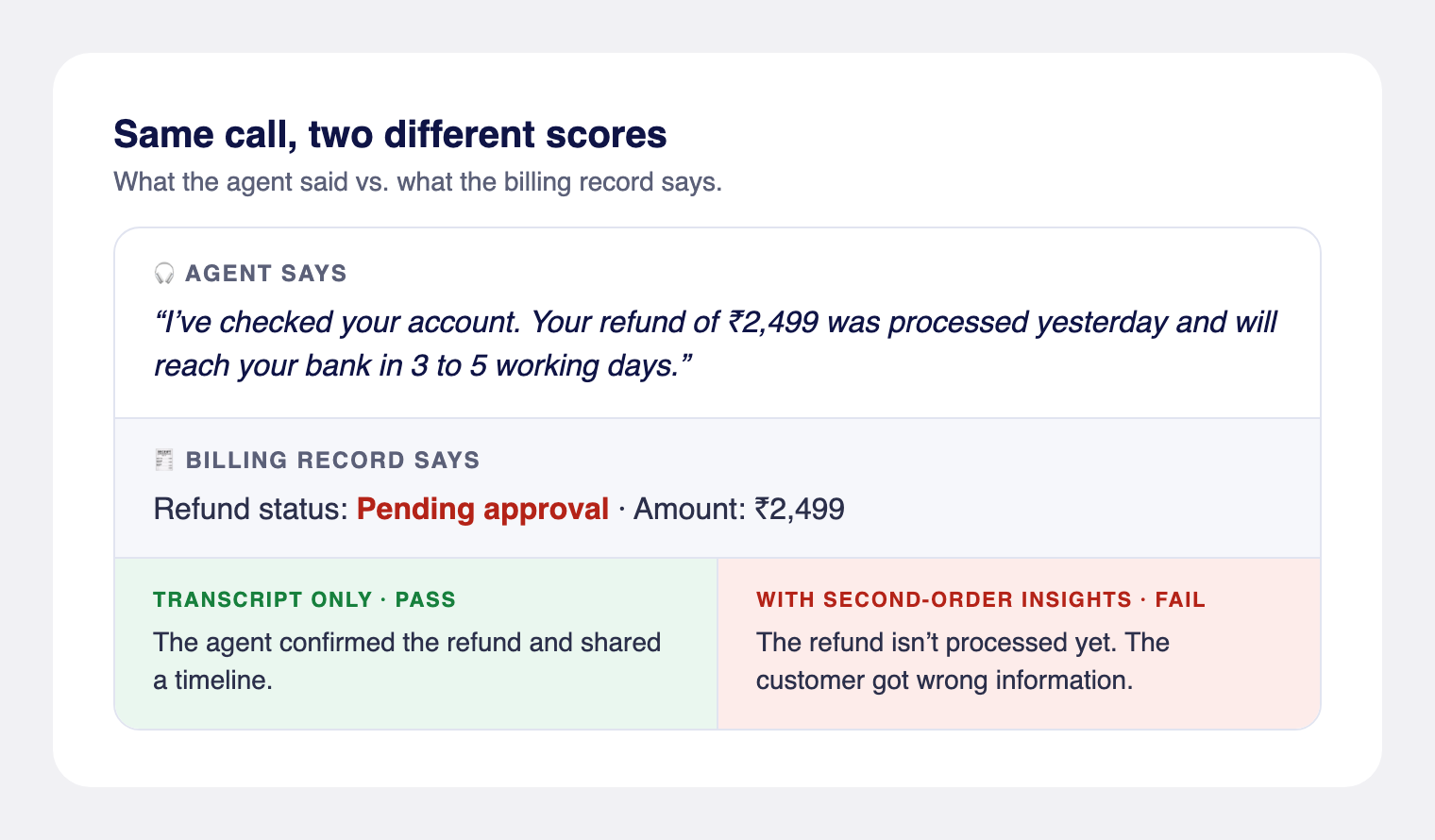
When an agent says “your refund was processed yesterday”, the transcript shows a confident, well-phrased update, and a model reading only the transcript will usually pass that KPI. If the refund is actually still pending, the customer just got wrong information, and the quality score says the call went well.
The facts needed to catch this already exist in your own systems. CQA just couldn’t see them.
What Second-Order Insights adds
CQA now looks at every interaction in two layers.
First-order insights come from the interaction itself: the transcript and its metadata. They tell you how the agent behaved and what they said.
Second-order insights come from your system of record. They tell you whether what the agent said matches the facts.
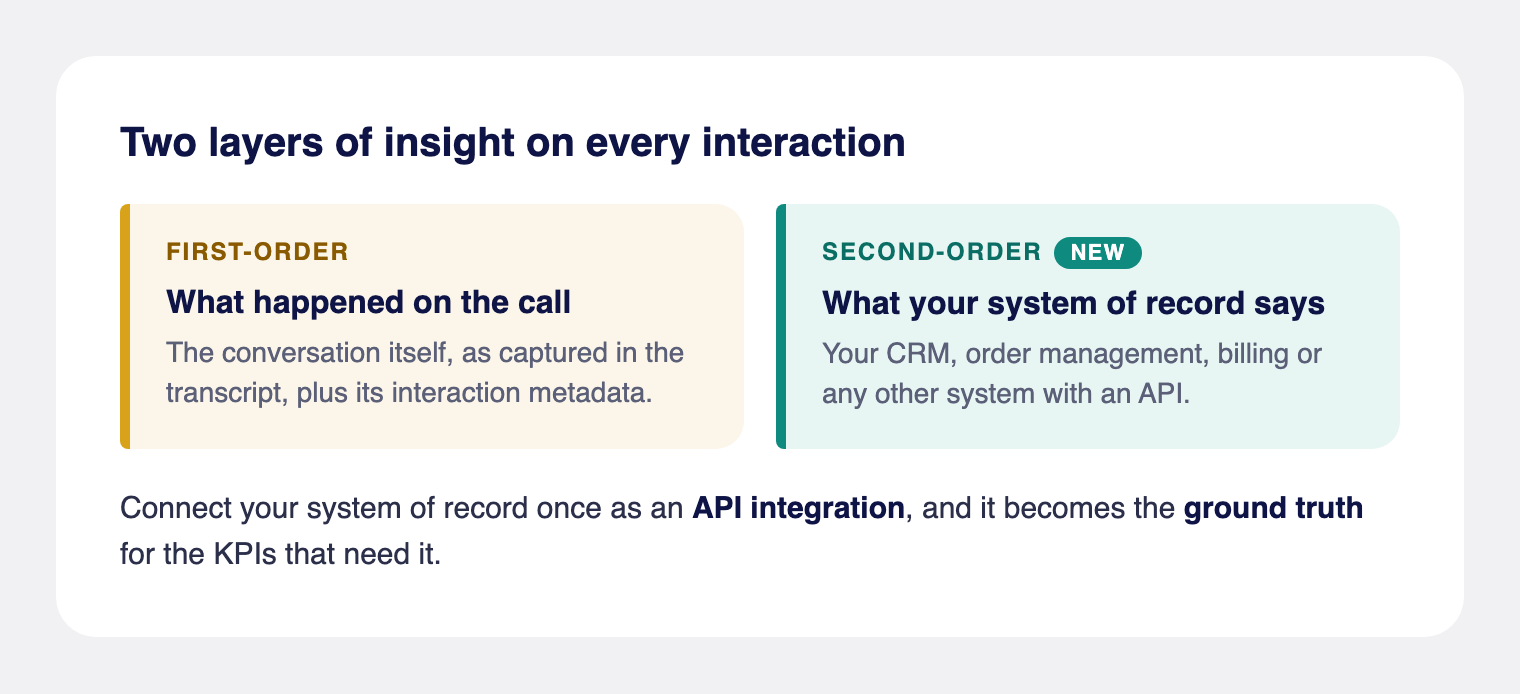
Your system of record becomes the ground truth for a KPI. Instead of guessing whether a claim sounds plausible, the model is handed the actual record and asked whether the agent’s words agree with it. Here is the same refund call, scored both ways:
How CQA checks the facts
You connect your system’s REST API to CQA once, as a tool. A tool tells CQA where to fetch the record, which interaction metadata identifies it (such as an Order ID), and which fields in the response matter, each with a short description. Any KPI can then use one or more tools as its ground truth.
When an interaction is scored:
- CQA reads the lookup key from the interaction’s metadata, such as the Order ID. This works the same for voice and text interactions.
- It fetches the record from your API at that moment, so it always checks against your system as it stands, never an old copy.
- It keeps only the fields that KPI needs and drops the rest of the response.
- It scores the KPI against those facts, in the same scoring step, with no extra model call.
A few things are built in:
- Only what you choose reaches the model. Each KPI sees only the fields picked for it, never the full API response, and never another KPI’s data.
- One lookup per record. Five KPIs checking the same order make one API call, not five.
- Predictable and auditable. The admin decides which systems each KPI checks. The model never picks what to call on its own.
- No score without the facts. If the record can’t be fetched, CQA doesn’t quietly fall back to the transcript. The analysis is flagged so you can fix it and re-run.
Where you can use it
Any KPI that asks “was what the agent said correct?” can now be checked on every interaction, instead of a sample checked by hand.
| Industry | What CQA can verify | Checked against |
|---|---|---|
| Securities and broking | The executed trade matches what the customer approved on the call | Trading or order management system |
| E-commerce and logistics | Order status, delivery dates and courier details the agent shared | Order management system |
| Banking and lending | Payment, EMI and outstanding amounts quoted to the customer | Loan management or core banking system |
| Insurance | Policy details, claim status and renewal dates | Policy administration or claims system |
| Telecom and subscriptions | Plan details, charges and eligibility for offers | Billing system or CRM |
| Healthcare | Medicine, dosage and frequency stated in a consultation | E-prescription system |
| Any support team | Refund status, open tickets and the customer’s loyalty tier | Billing system, helpdesk or CRM |
Compliance: was the executed trade the one the customer approved?
In broking, a trade placed on a customer’s instruction is confirmed on a recorded call, and the executed trade has to match it. Checking this used to mean comparing a sample of recordings with the order book by hand, so most calls were never checked. Now the KPI pulls the executed order using the order ID on the call and compares it with what the customer approved.
| On the call | In the order system | |
|---|---|---|
| Side | Buy | Buy |
| Quantity | 50 shares | 500 shares |
| Order type | Limit | Market |
| KPI result | Fail: quantity and order type differ from what the customer approved | |
Set it up in three steps
Setup is a one-time job for an admin. Before you start, make sure the value that identifies the record, such as an Order ID or Customer ID, reaches CQA as interaction metadata. It can come through any way you send data to CQA: the API, S3 or SFTP files, Exotel’s contact centre, or the Exotel platform.
1. Add your system of record
Open Integrations from the left menu and go to the REST APIs tab on the Tool Integration page. Every API you have registered appears as a card showing its method, authentication, mappings and fields, with a switch to turn it on or off and a Test button. Click New Integration to add one.
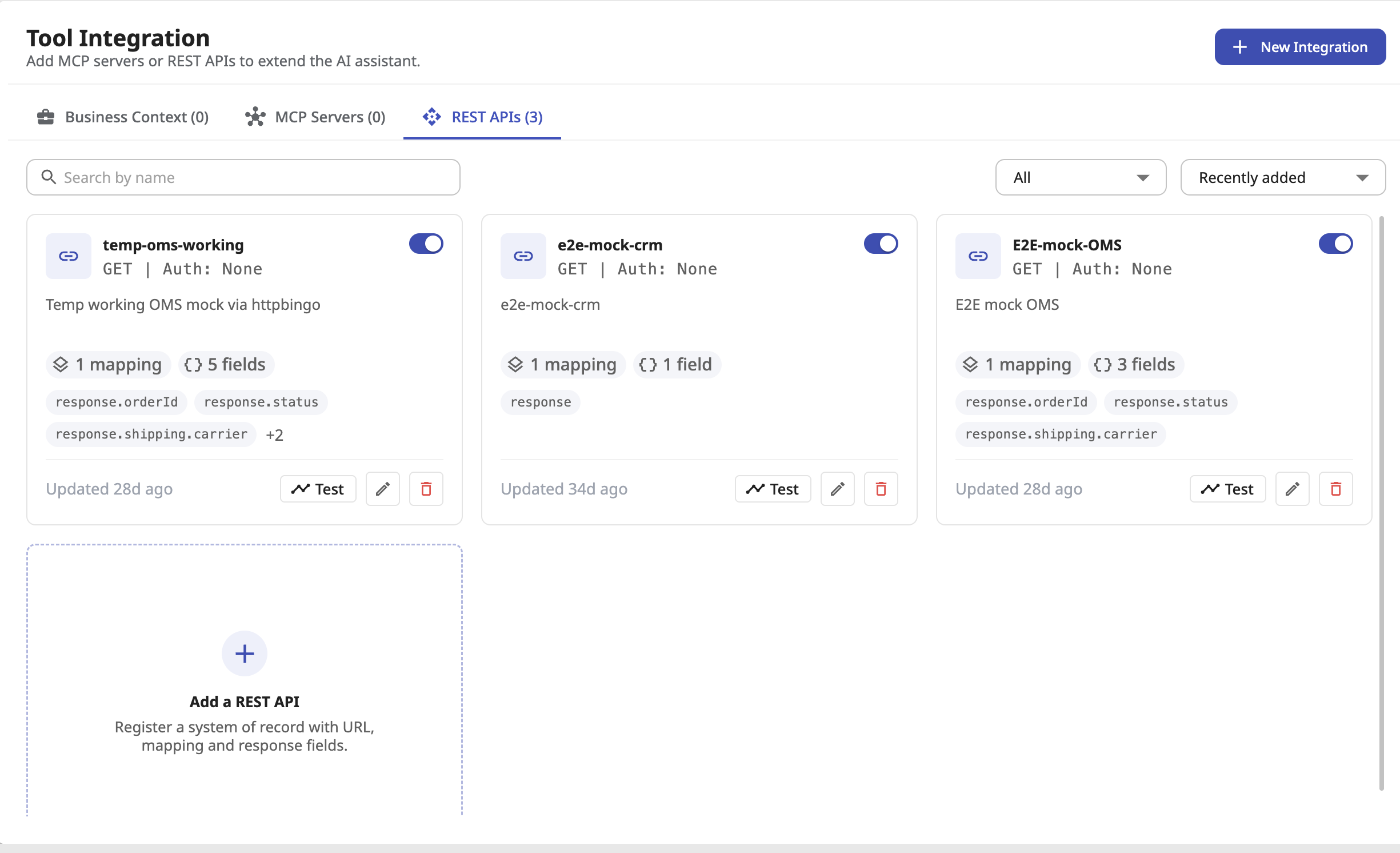
The form has three parts.
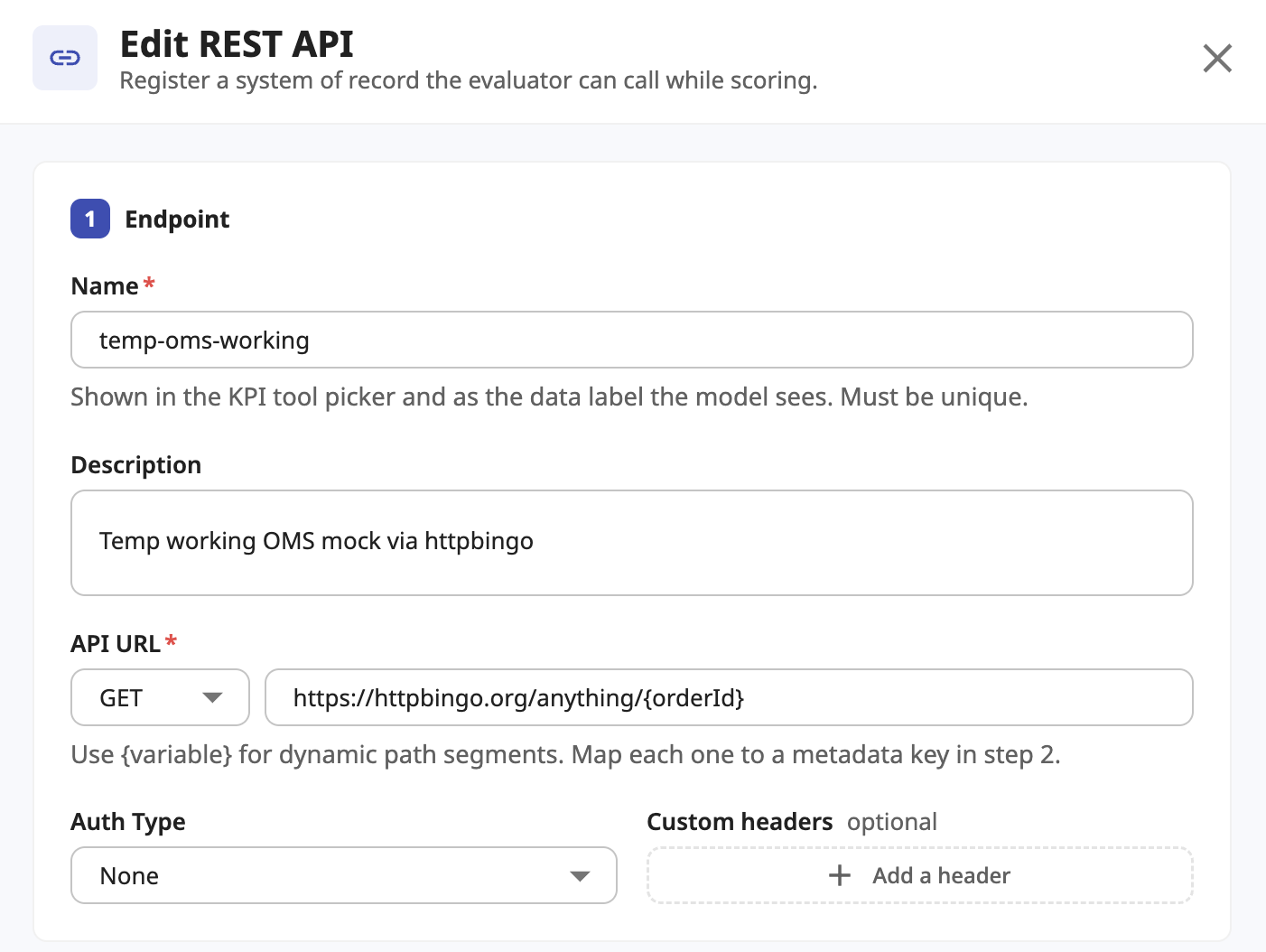
a. Endpoint. Give the API a unique name. The name appears in the KPI tool picker and labels the data the model sees, so pick something clear, such as “Order Management”. Enter the API URL, using {placeholders} for the parts that change per interaction, for example https://oms.example.com/orders/{orderId}. Choose the authentication type and add custom headers if your API needs them.
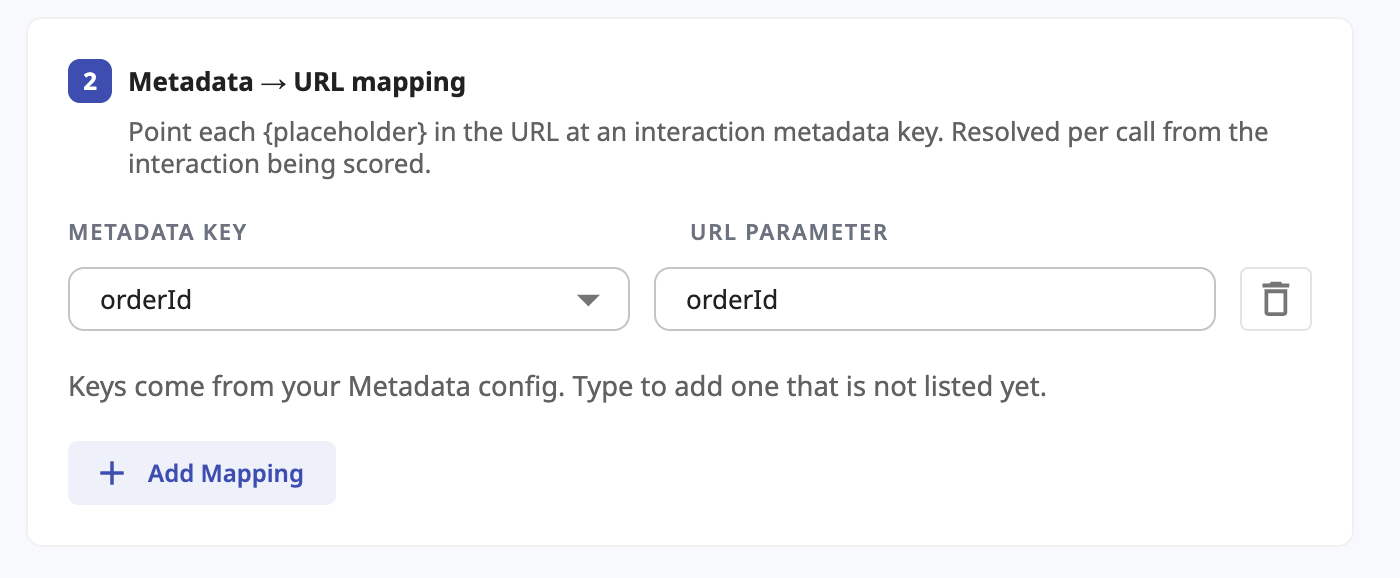
b. Metadata to URL mapping. Point each placeholder in the URL at an interaction metadata key. When an interaction is scored, CQA fills the placeholder with that interaction’s value. Keys come from your Metadata settings, and you can type a new one if it isn’t listed yet.
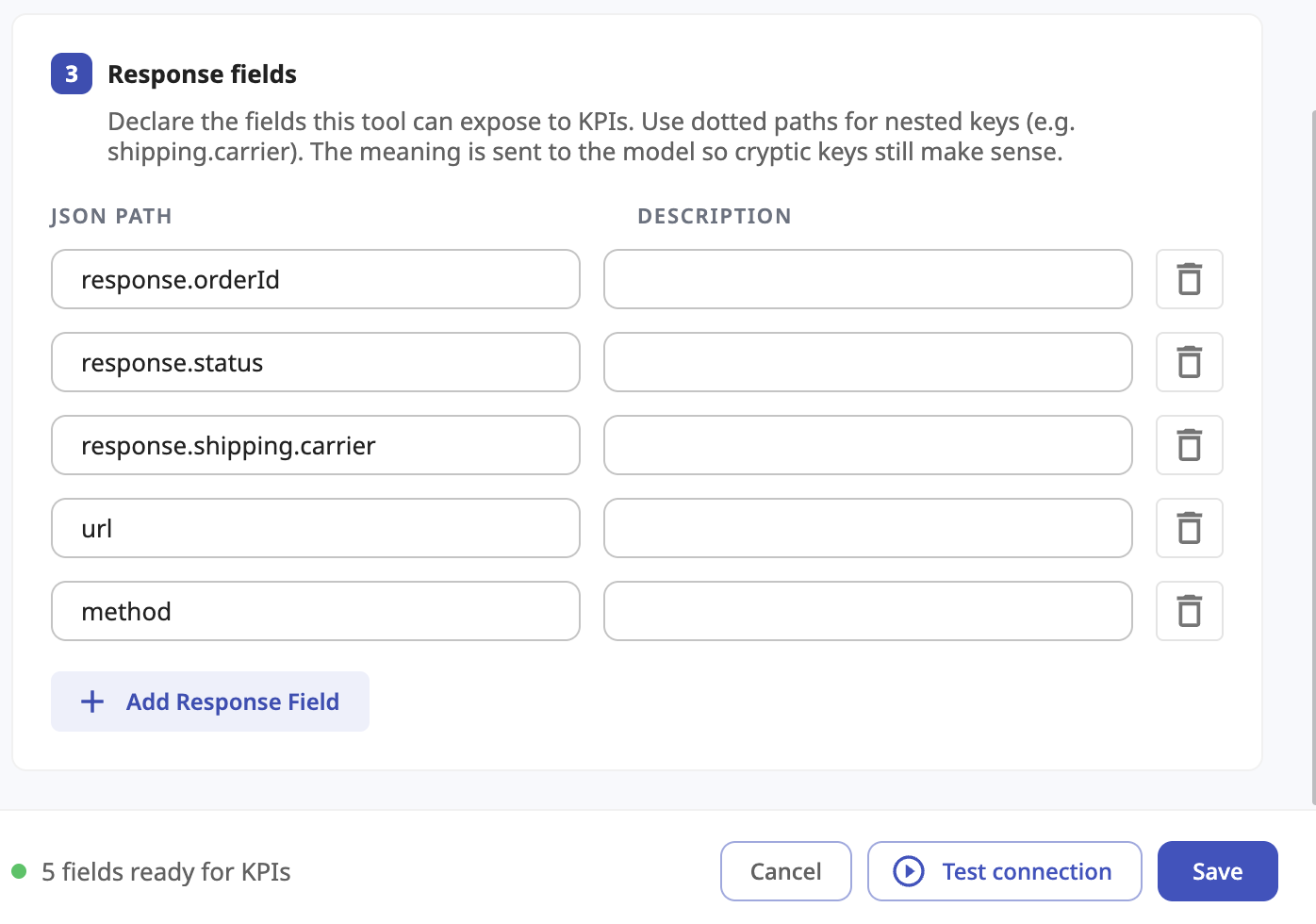
c. Response fields. List the fields in the API response that KPIs may use, each with a short description. Use dotted paths for nested values, such as shipping.carrier. The description is sent to the model with the value, so even a cryptic field name makes sense to it. Click Test connection to check the API responds as expected, then Save.
2. Link it to a KPI
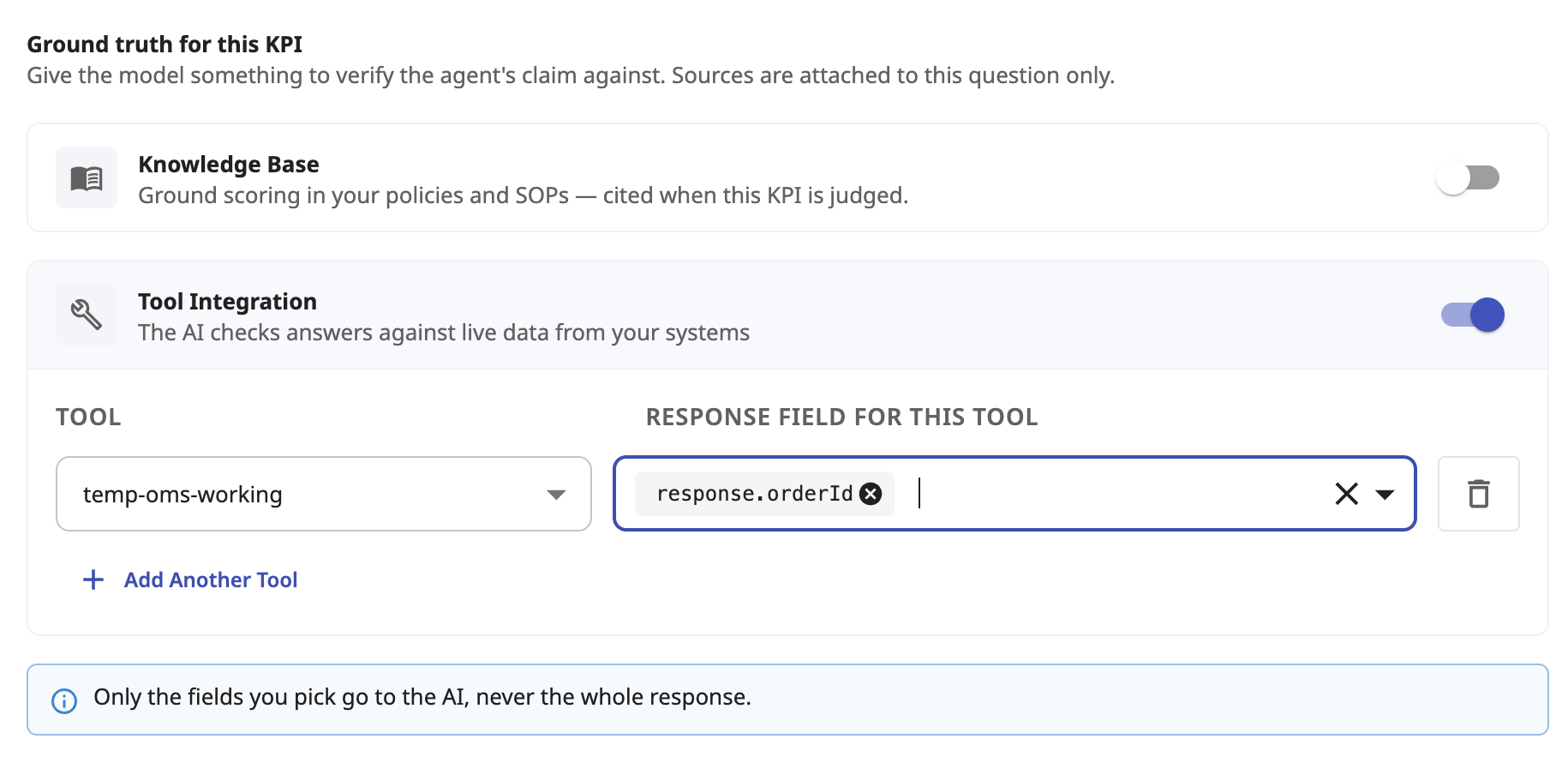
Open your Quality Profile and edit the KPI you want to verify. Under Ground truth for this KPI, switch on Tool Integration, choose the tool and pick the response fields this KPI needs. If the KPI needs facts from more than one system, click Add Another Tool. Only the fields you pick are sent to the model, never the whole response.
3. Write the KPI question as a comparison
Phrase the KPI so the model compares the agent’s words with the record, for example: “Did the refund status the agent stated match the refund status in the billing record?” You don’t need to name the fields in the question; they are attached automatically.
From then on, every new interaction scored against that Quality Profile is checked against your records automatically.
Try it in CQA
Second-Order Insights is live in CQA. To set up your first integration, open Integrations in CQA, or reach out to your account manager or CQA Support, and we’ll help you connect your first system of record.